
5 phone screen settings to change for healthier eyes
None of these settings replace giving your eyes an actual break, but stacked together, they can take edge off a long day of scrolling

If your eyes feel tired, dry, and irritated after using your phone for an extended period of time, you have digital eye strain (DES). When it gets too bad, you can even experience blurry vision and headaches.
What usually helps is putting the phone away and giving your eyes enough rest. While DES will not cause any permanent damage to your eyes, it can become extremely annoying and uncomfortable if you have no choice but to power through in situations where you can't put your phone down.
Turn on auto-brightness
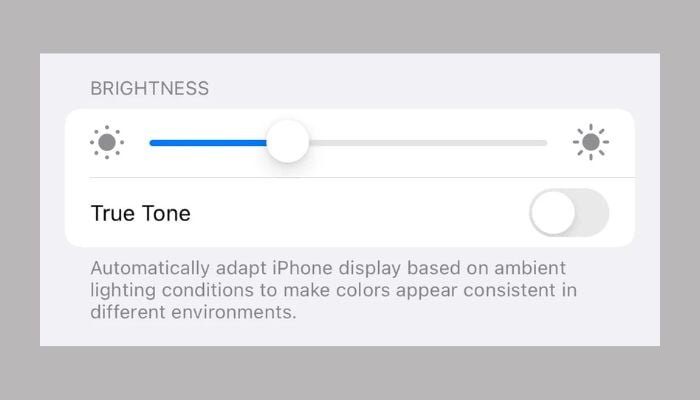
A too-bright screen in a dark room forces your eyes to work harder against the glare. Auto-brightness uses your phone's light sensor to adjust screen intensity to your surroundings automatically.
On iPhone:
- Go to Settings and click on Accessibility and then Display & Text Size
- Toggle on Auto-Brightness.
On Android:
- Go to Settings and click on Display
- Toggle on Adaptive Brightness.
Dim screen or reduce white point
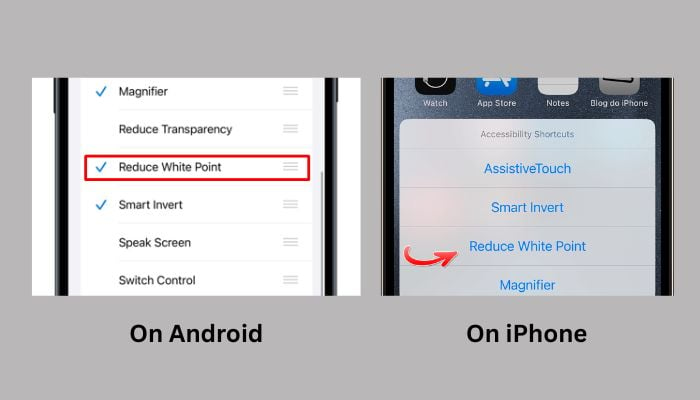
Even at minimum brightness, a phone can feel blinding in a pitch-black room. This setting lowers the intensity of bright colors beyond the standard minimum.
On iPhone:
- Go to Settings and then click Accessibility
- Click on Display and Text Size
- Toggle on Reduce White Point, then drag the slider to around 90%.
On Android:
- Go to Settings then go Accessibility
- Click on Vision enhancements, go to Extra Dim and turn on the toggle.
Schedule your blue light filter
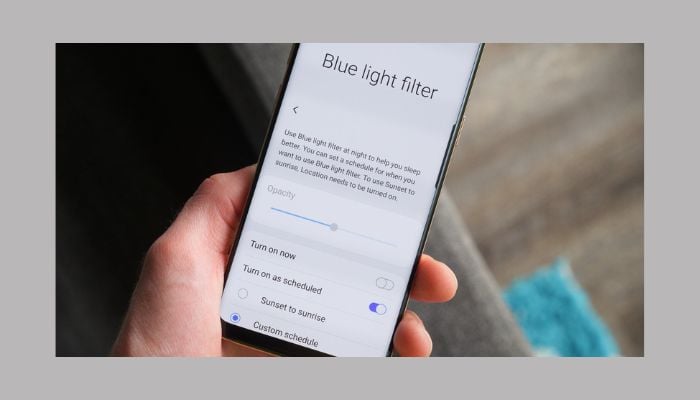
Research published in the Journal of Photochemistry and Photobiology B: Biology found blue light makes up about 25% of the sun's rays, with 6% to 40% of indoor lighting made up of it too.
On iPhone:
- Go to Settings and then to Display & Brightness
- Click Night Shift and toggle on Scheduled
- Then set a custom time and adjust the color temperature slider.
On Android:
- Settings then click on Display
- Go to Eye Comfort Shield and toggle on, then choose Adaptive or set a Custom schedule.
Switch to Dark Mode in low light
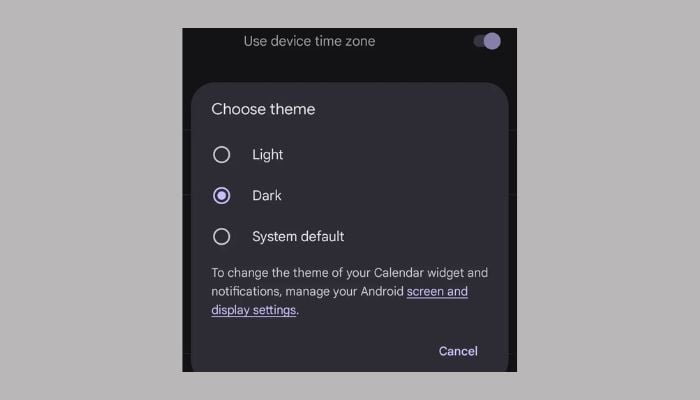
Dark mode swaps bright backgrounds for black ones, cutting glare and easing strain in dim settings. It also extends battery life on OLED displays, though it can be harder on the eyes for people with astigmatism.
On iPhone:
- Go to Open Control Center and tap brightness slider
- Then tap Dark Mode.
On Android:
- Go to settings and click on Display
- Toggle on Dark Theme.
Set screen distance warning
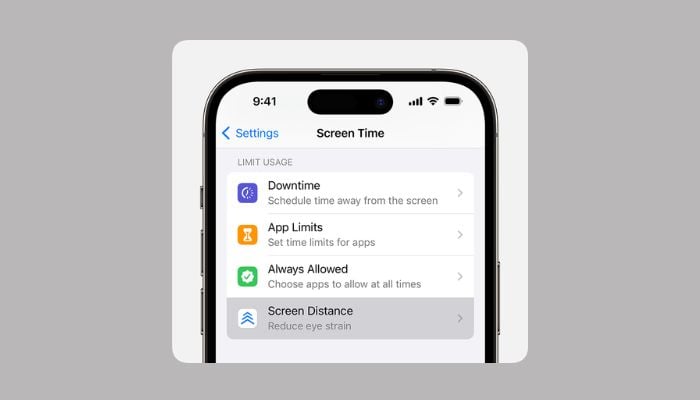
Holding your phone too close forces your eyes to converge for extended periods, which strains eye muscles and raises myopia risk, especially in children. iPhones with a TrueDepth camera (iPhone X or newer) can flag this automatically.
On iPhone:
- Go to Settings then to Screen Time option
- Click Screen Distance and toggle on.
You'll get a warning if you hold the phone closer than 12 inches for too long.
None of these settings replace giving your eyes an actual break. But stacked together, they can take the edge off a long day of scrolling, and they take less than five minutes to set up.


-
 This popular cooking garnish may offer surprising benefits for brain health
 -
 Was the human brain once two separate organs? Scientists find new clues
 -
 Novo Nordisk partners with Anthropic to accelerate AI-powered drug discovery
 -
 Congo Ebola outbreak reaches turning point as daily infections fall
 -
 Study reveals why some babies are born with heart defects
 -
 Third measles-associated death reported as Pennsylvania outbreak reaches 676 cases
 -
 Cyclosporiasis outbreak: US officially ends largest outbreak linked to contaminated lettuce
 -
 Hot beverages increase risk of cancer? New research provides in-dept details
-
 Highest-level recall issued for potato chips over banned ingredient posing death risk
 -
Very hot tea and coffee could triple cancer risk, Oxford study warns
-
Global study reveals nearly 1.7 million deaths linked to second-hand smoke exposure in 2023
-
AI-designed drug also slowed biological aging, study finds