ChatGPT Locked Chats: How to set up PIN Protection
Follow these steps to lock existing conversations, open hidden chats and manage your PIN on supported devices
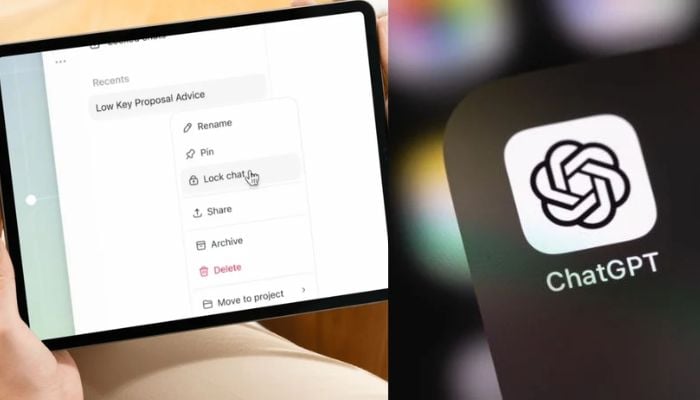
Want to keep a ChatGPT conversation out of your regular chat history? The Locked Chats feature lets users hide selected discussions behind a four-digit account PIN, making them less visible when sharing a screen or using a shared device.
Once enabled, the feature moves a conversation to a dedicated section rather than deleting it. Here is how to lock an existing chat, find it later and manage access to your saved conversations.
How to lock conversation in ChatGPT
Steps for transferring an active conversation into the Locked Chats feature are:
- Access ChatGPT and locate the conversation that you wish to transfer.
- Click on the three-dot menu located beside the chat.
- Select “Lock chat.”
- Click on “Lock chat” again.
- Type in a four-digit PIN code or use your existing PIN code.
The conversation will be transferred away from the normal chat list and conversation search function. The name of the conversation may require some time to go away from the search bar and other devices where ChatGPT is currently running.
How to find and open locked chats
For the retrieval of a previously saved conversation, go to Projects > Locked chats in ChatGPT. You need to input your four-digit PIN or authenticate using the supported method, which includes Face ID and Touch ID on certain mobile devices.
Choose the conversation you want to retrieve. The access will only be temporary, and the chat will remain in Locked Chats until it is unlocked permanently.
After completion, click on Lock now to make the chat titles inaccessible and lock the chat permanently. In mobile phones, the access to chat will expire after one minute spent outside the Locked Chats section or after one minute spent away from the application.
How to change or reset my ChatGPT PIN?
To change your PIN, navigate to Settings > Security and login > Account PIN. Click on either Change or Change PIN depending on your device and input your existing PIN and set a new four-digit code.
Be very cautious while resetting your forgotten PIN since the process will result in permanent deletion of all previously locked chats, information stored in the conversation and the files that can only be accessed with that PIN. OpenAI Support cannot recover this content, and the deletion cannot be undone.
If you still remember your current PIN, update it instead of reseting.
How to unlock or delete a locked chat?
To bring back a conversation to normal history, go to the conversation, unlock it using the option to unlock, and click on it.
The conversation will be brought back to normal chat history, even though it will take time for the conversation to come up again when searched for. However, if you wish to remove a conversation, go to its menu and remove it. Removed conversations cannot be retrieved.


-
 ChatGPT Locked Chats add pin protection for private conversations
 -
 Cloudflare hits 10m developers, up from 7.4m
 -
 China establishes state-owned national data group to fuel AI and digital economy
 -
 Ex-OpenAI executive Bob McGrew launches Arda to accelerate US manufacturing
 -
 Sam Altman outlines 3 AI endgames, including one company dominating all rivals
 -
 Australia to sue 5 tech giants over under-16 social media ban
 -
 Elon Musk praises EU USB-C mandate as a massive win for consumers
 -
 US orders immediate removal of DeepSeek AI from federal systems over national security risks