How to overlay, merge two images on iPhone?
With this iPhone trick, you can easily place yourself in any group photo or background
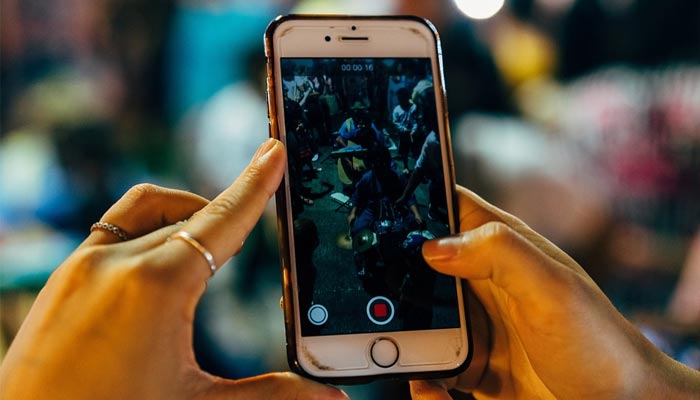
Have you ever wished you could edit yourself in a beach photo or besides the Eiffel Tower?
Well, with this iPhone trick, now you can easily insert yourself in any group photo or any background.
Let's take a look at how you can overlay pictures using the iPhone photo app.
If you want to overlay two photographs without downloading an additional third-party tool, doing it on the iPhone's photo app is the simplest method. The first step is to turn the subject of the first photo into a sticker.
You can make personalised stickers from the images on your iPhone using a useful feature of the Photos app. To do this, open the image you want to make a sticker out of, Make Use Of reported.
Press and hold the photo subject for a moment, then let go. When the subject is correctly identified and selected, you'll notice a luminous white line following its edge. Select "Add Sticker" after that.
The selected photo subject will automatically be added to your iPhone sticker collection.
Now open the image you want to add the subject to, tap edit, and select the Markup option. Once you do this, a plus icon will appear on the bottom toolbar, click on it and choose "Add Sticker."
Select the sticker you made from the first image and layer it on top of the current photo, and adjust it according to what you want.


-
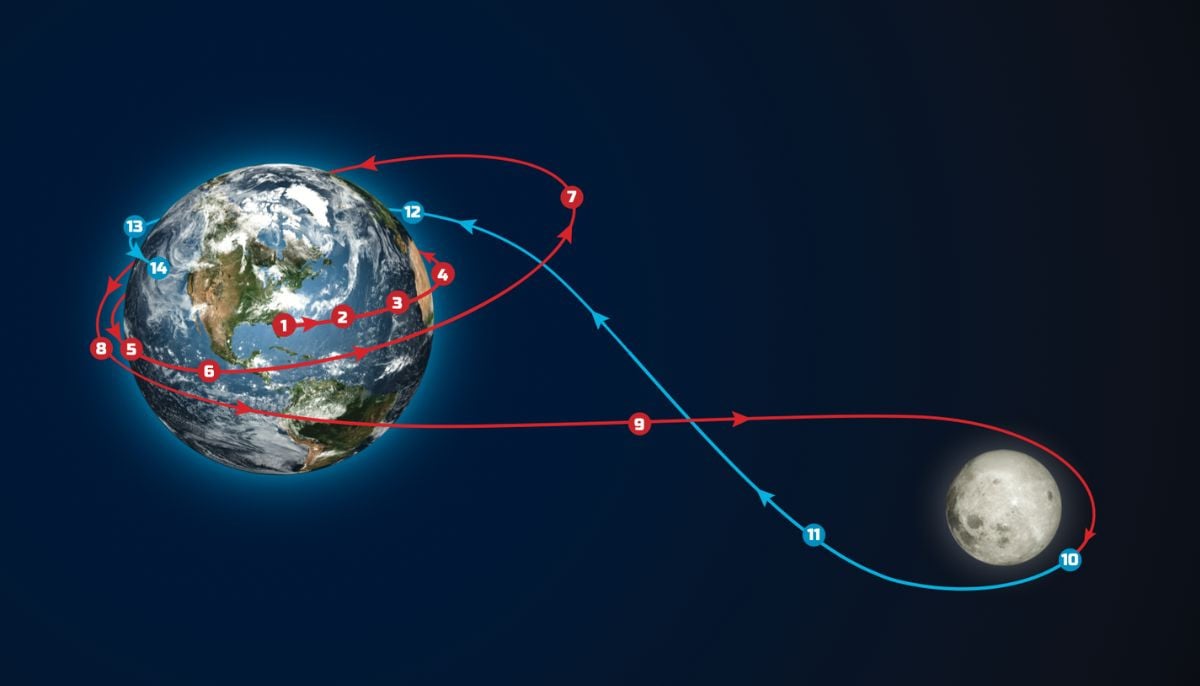 Why NASA Artemis II won’t take straight path to Moon: ‘Figure-8’ route explained
 -
 Even in space: NASA Artemis II astronauts hit Outlook glitch mid-mission
 -
 Artemis II hurtles ever closer to the lunar far side
 -
 Where is Artemis II today? Here is everything to know about NASA’s journey to the moon
 -
 European Space Agency to negotiate with NASA on future lunar missions
 -
 SpaceX AI satellites plan raises doubts after Microsoft setback
 -
 NASA Artemis II lifts off, sending cubesats into deep space study
 -
 Could there be life on Mars? NASA Jared Isaacman claims chances are 90%