How to stop YouTube Shorts from taking over your feed
YouTube hasn't built an official 'turn off Shorts' option, yet users can close them through app's settings
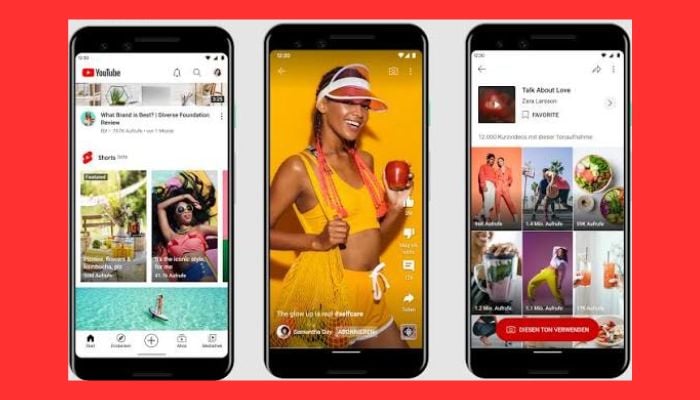
For years, YouTube has been synonymous with landscape, minutes-long videos. Then came 2020, when Shorts flipped that formula on its head, and the vertical clips have been steadily creeping into every corner of the platform ever since.
But not everyone is happy with it: some think that the style doesn’t work well on a desktop screen, while others feel frustrated because it takes their space away from the lengthy videos they have come for. Plus, lots of people have found themselves scrolling through Shorts for an hour because they only wanted to watch one music video.
While there is no officially released “turn off Shorts” option in YouTube yet, there are a couple of hidden settings and a browser extension that allow one to do it almost perfectly.
How to remove YouTube Shorts from your phone?
- Launch the YouTube app on Android or iOS, tap the 'You' tab at the bottom, then tap the gear icon in the top-right corner to open Settings.
- Under the Account section, select Time management. This is the same tool YouTube built to limit doomscrolling, and it now doubles as an off switch for Shorts.
- Tap Shorts feed limit. As of an April 2026 update, YouTube added a 0-minute option here, which effectively removes the Shorts feed from your Home tab rather than just capping your time on it.
- Select the 0 minutes option. Shorts should disappear from your home feed almost immediately, though this rollout may not have reached every account yet.
- If Shorts are still showing up, pull down to refresh your feed or fully close and relaunch the app. The Shorts tab stays in the bottom menu, but tapping it will show a limit-reached message unless you choose Ignore limit for today.
How to remove YouTube Shorts from your desktop?
For desktop, since there's no built-in time management tool in the browser:
- On YouTube, click the three-dot button next to each video on the Shorts shelf and choose Show Fewer Shorts or Not Interested for each video individually. This will guide the algorithm but will not guarantee that you will stop seeing Shorts altogether.
- To make this setting change more permanent, download Unhook from the Chrome Web Store, Firefox Add-ons, or Edge Add-ons.
- Once downloaded, click the 'Unhook' button in your browser's extensions menu (usually top-right of the screen) to open Unhook's menu.
- Then scroll down to Hide Shorts and activate this function. Be careful not to activate Hide Home Feed, as this will hide all of your home feed content instead of just Shorts.
- Refresh any open YouTube tab, or open a new one. Shorts should no longer appear in your feed. Unhook also lets you hide other elements, like comments, mixes, and trending, if you want to declutter further.


-
 Meta’s Muse AI took over real life tasks, here’s where it failed
 -
 TikTok $400M privacy settlement: California judge blocks key part
 -
 Do people trust China more than the US on AI?
 -
 Trump-Xi state dinner guest list: Tech leaders in focus
 -
 Russian store robot ‘kicks’ customer who shoved it
 -
 New Android malware uses AI to take over your phone
 -
 Claude Code's new projects feature acts like a chief of staff: Here’s what it does
 -
 Google’s Gemini hacked 3 companies in first known AI breakout—What happened?